

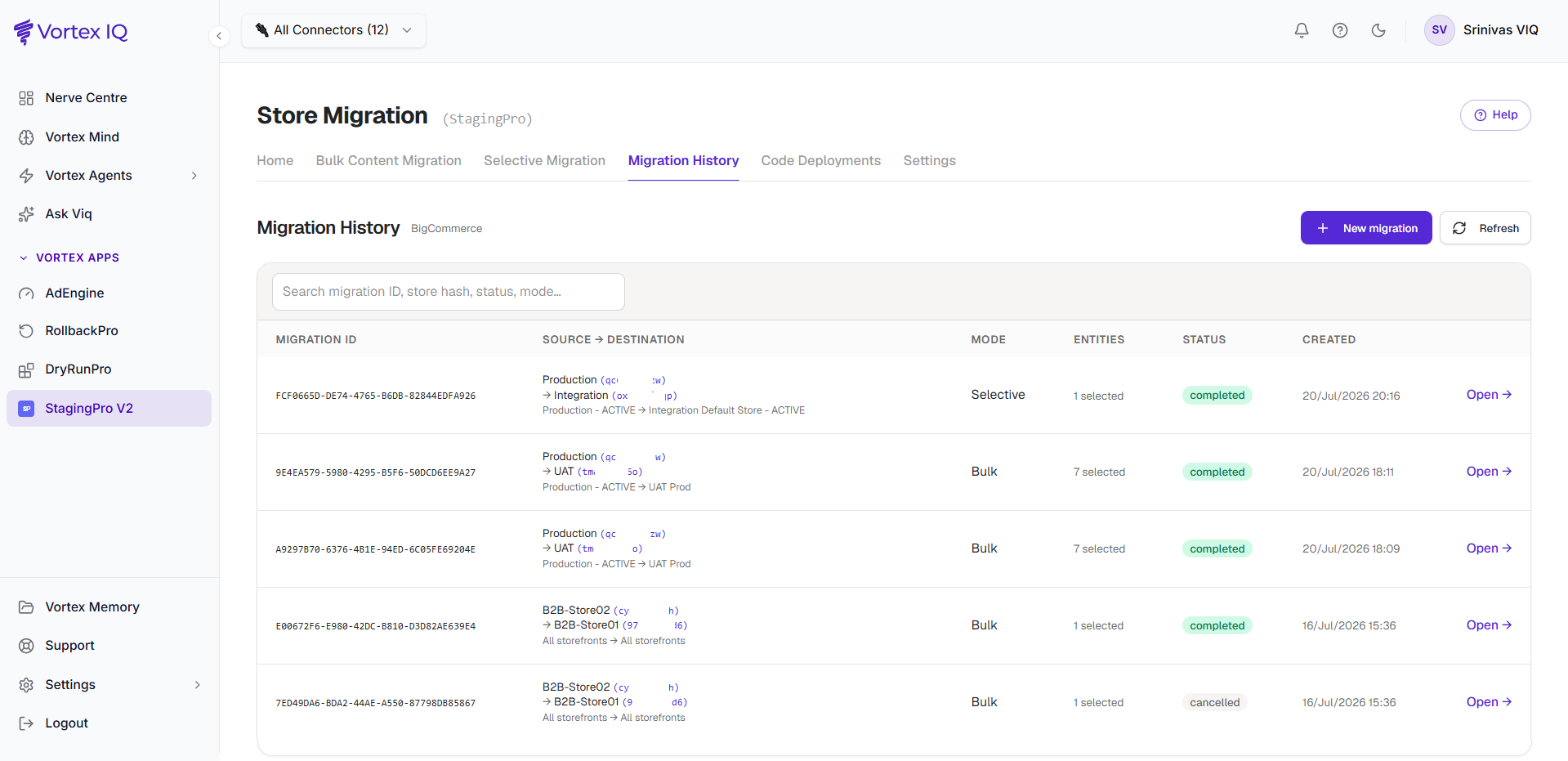
Migration History tab
This tab lists every migration, newest first. History is permanent — it survives independently of the machinery that ran the migration, so a run from months ago opens with its full detail and issue log. The list is paginated (10/25/50/100 rows per page, Prev/Next; there is deliberately no jump-to-page so pages never drift or duplicate while new runs land). The search box filters the current page.Reading a migration row
Each row shows:
Status meanings (shown as their literal values):
A True Replica run’s detail chip additionally shows verifying replica after the engine finishes, while the compare/delta/report pipeline is still working.
Drilling into run detail
Click Open → on any row. The run detail page shows live progress (current phase, items done, rate, and a time estimate that sharpens as the run proceeds), Pause / Resume / Cancel controls, a colour-coded strategy badge, timings (Started / Completed / Time taken, plus an Attempts counter if the run was resumed), and:- Breakdown by Phase — one row per entity with Total · Created · Updated · Matched · Failed · Skipped columns (a Deleted column appears only on Make Exact Copy runs). Each phase row is followed inline by its section and sub-component rows; the numbers always reconcile to the totals, and a component that ran but found nothing shows an explicit 0.
- Issue log — click the failed / skipped / warnings counters to open it. Items are grouped into Fixed automatically (items auto-heal repaired, with how), Failed, Warnings, and Skipped, each named (SKU, file, key, or name) with a plain-English reason and a “what to do” action. Repeating warnings are folded (examples plus a “+N more” totals line). Export CSV downloads the lot.
- Theme activation — per picked theme, green ✓ / amber ✗ chips per targeted storefront; hover a chip for the reason, and the amber chip links into the issue log. Activation is confirmed by reading the storefront back, not just by API success.
- Page templates — the picked template files and whether global widget content was included and migrated.
A non-zero skipped count isn’t automatically a problem — many skips are deliberate (for example, references pointing at items outside the migration). The message says when no action is needed.
Code Deployments tab
The Code Deployment tab tracks theme deployments from the connected repository: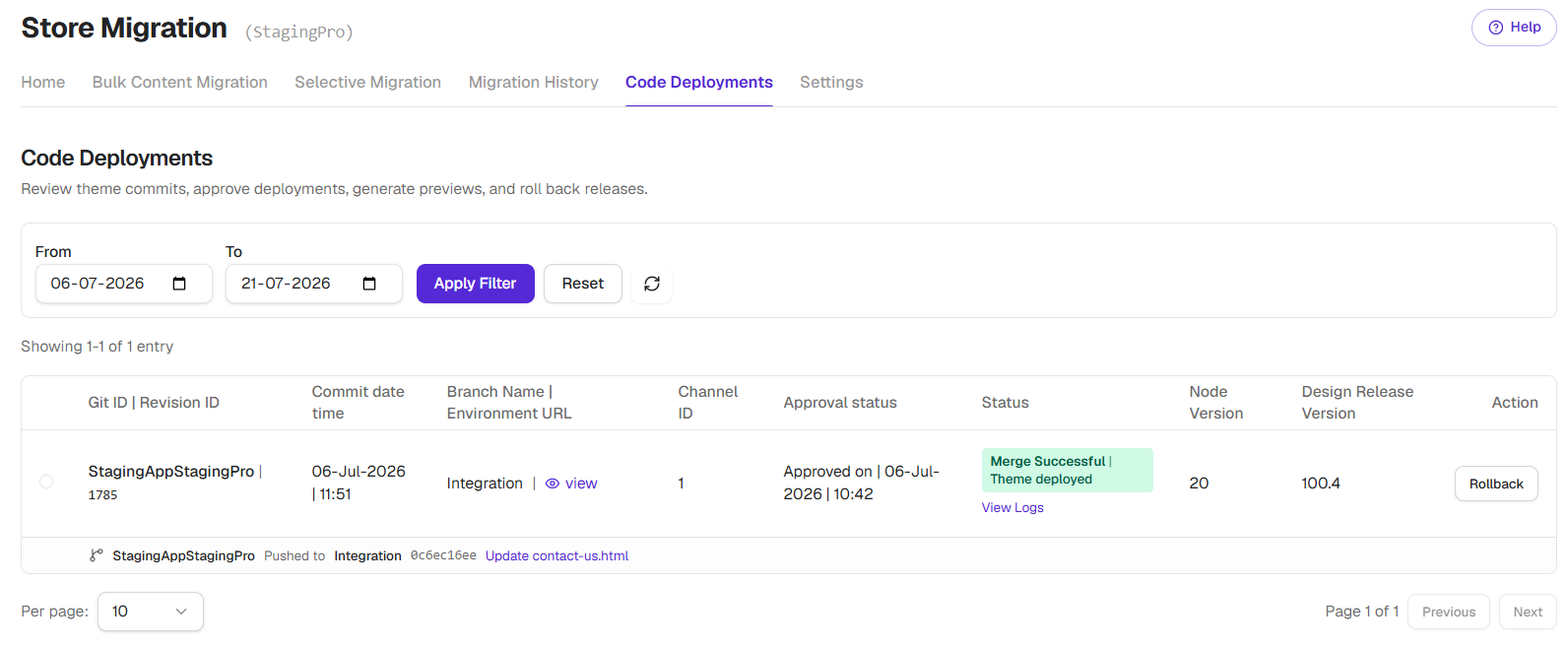
Approval workflow
Code deployments may require approval before going live:- Pending Approval, deployment is waiting for review.
- Approved, deployment will proceed.
- Rejected, deployment will not run.
- Deploy, push the theme to the target environment.
- View Logs, inspect detailed deployment logs.
- Rollback, revert to a previous theme version.
- Schedule, set a future deployment time.
Deployments may take 15 to 20 minutes after approval, depending on theme size. The bottleneck is BigCommerce assembling the theme bundle and accepting the upload, not StagingPro itself.
Theme Rollback
The Action column on Code Deployment offers Rollback. Click it, and StagingPro redeploys the previous theme version to the same environment. s15 to 20 minutes for the rollback bundle to land on BigCommerce. Useful when a theme deploy regressed checkout or broke a key page.Audit trail summary
The Migration History section gives you a complete audit trail:- Who, control actions (pause, resume, cancel) are attributed to the account that performed them; runs themselves are recorded against your organisation.
- What, exactly which entities were migrated.
- When, precise timestamps for every activity.
- Where, source and destination environments.
- Result, success, partial, or failure with error details.
Best practices
Before contacting support
Please gather the following information and send, to enable our team in resolving the issue quickly:- Migration ID of the problematic migration.
- Started at and Completed at timestamps.
- Error messages from the per-entity view.
- Source and destination environments.