> ## Documentation Index
> Fetch the complete documentation index at: https://docs.vortexiq.ai/llms.txt
> Use this file to discover all available pages before exploring further.
# Generating an Organisation Client ID and Client Secret
> Generate API credentials (a client_id and client_secret) for performing the migration
## Overview
Call the StagingPro V2 Migration API server-to-server using a Bearer token.
To obtain that token, log in at:
```text theme={null}
POST https://app.vortexiq.ai/v2/api/bc-migration/login
```
using your identity:
* username
* email
* organisation name
PLUS a per-organisation API credential:
* client\_id
* client\_secret
That credential is issued by a VortexIQ admin from the **Migration Access** page in the admin portal.
This guide walks you through the navigation and the issuing process step by step.
* It is generated by the system - nobody chooses the values.
* The **client\_id** is permanent for the organisation.
* The **client\_secret** is random and regenerated on every issue/rotate.
* The **client\_secret** is displayed **EXACTLY ONCE**, at the moment it is issued.
* Only a hash is stored server-side; it can never be retrieved again.
* If it is lost, rotate it.
* Rotating or disabling the credential instantly invalidates every API token previously issued to that organisation.
***
## Prerequisites
* A VortexIQ admin account with access to the admin panel and the VortexSpace management permission.
* The customer organisation must exist in VortexIQ and be enabled for Store Migration (this same page manages that).
* For API login to succeed, the organisation must have at least **2 connected BigCommerce (StagingPro) stores** - a migration needs a source and a destination.
***
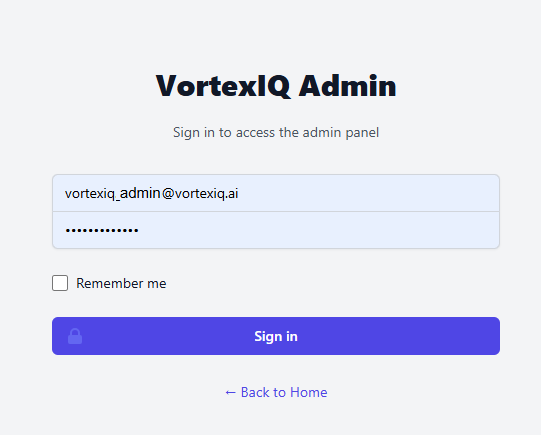
## Step 1 - Sign in to the Admin Portal
Open the admin login page in your browser:
```text theme={null}
https://app.vortexiq.ai/admin/login
```
Sign in with your admin email address and password.
 ***
## Step 2 - Open VortexSpace Migrations
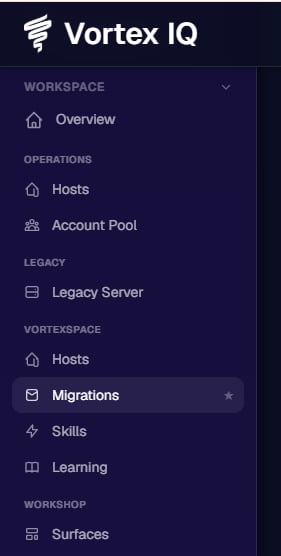
After signing in, use the left sidebar.
Scroll to the **VORTEXSPACE** section and click **Migrations**.
***
## Step 2 - Open VortexSpace Migrations
After signing in, use the left sidebar.
Scroll to the **VORTEXSPACE** section and click **Migrations**.
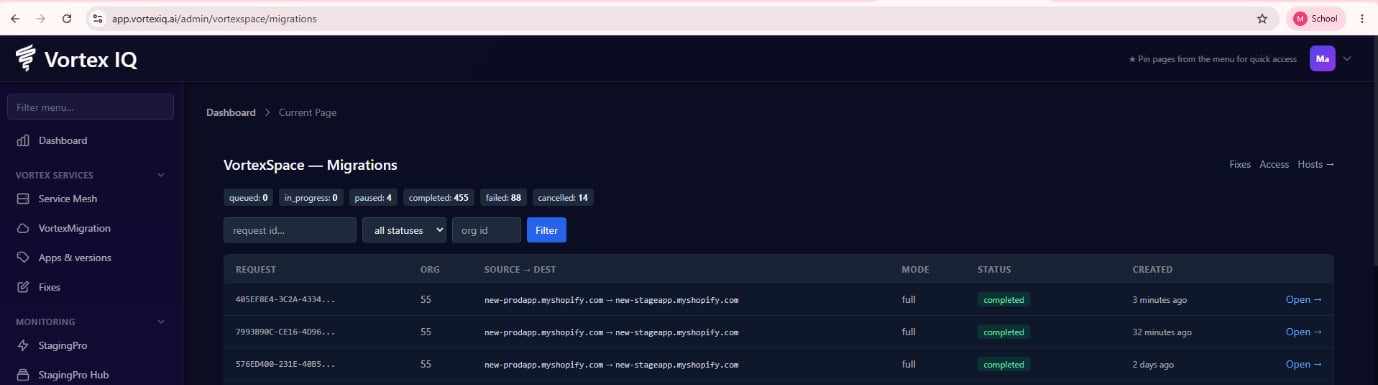
 This opens the **VortexSpace - Migrations** control panel:
```text theme={null}
https://app.vortexiq.ai/admin/vortexspace/migrations
```
In the **TOP-RIGHT** corner of that page, click the **Access** link.
This opens the **VortexSpace - Migrations** control panel:
```text theme={null}
https://app.vortexiq.ai/admin/vortexspace/migrations
```
In the **TOP-RIGHT** corner of that page, click the **Access** link.
 ***
## Step 3 - The Migration Access page
The **Access** link opens the **Store Migration - Access** page:
```text theme={null}
https://app.vortexiq.ai/admin/vortexspace/migration-access
```
This page lists every organisation allowed to use Store Migration, with an **API CREDENTIAL** column showing each organisation's credential state.
If the your organisation is **NOT** yet in the list:
* Type its name in the **Add organizations** search box.
* Select it.
* Click **Enable selected**.
The organisation appears in the table.
***
## Step 4 - Issue the Client ID and Client Secret
Find the organisation's row in the table and click **Issue credential** in the **API CREDENTIAL** column.
The page reloads with an amber banner showing the freshly generated pair - **THIS IS THE ONLY TIME THE SECRET IS EVER DISPLAYED**.
The **client\_secret** is displayed **ONLY ONCE**.
Copy **both** the **client\_id** and **client\_secret** immediately.
If the secret is lost, it **cannot be retrieved**. Rotate the credential to generate a new secret.
***
## Step 3 - The Migration Access page
The **Access** link opens the **Store Migration - Access** page:
```text theme={null}
https://app.vortexiq.ai/admin/vortexspace/migration-access
```
This page lists every organisation allowed to use Store Migration, with an **API CREDENTIAL** column showing each organisation's credential state.
If the your organisation is **NOT** yet in the list:
* Type its name in the **Add organizations** search box.
* Select it.
* Click **Enable selected**.
The organisation appears in the table.
***
## Step 4 - Issue the Client ID and Client Secret
Find the organisation's row in the table and click **Issue credential** in the **API CREDENTIAL** column.
The page reloads with an amber banner showing the freshly generated pair - **THIS IS THE ONLY TIME THE SECRET IS EVER DISPLAYED**.
The **client\_secret** is displayed **ONLY ONCE**.
Copy **both** the **client\_id** and **client\_secret** immediately.
If the secret is lost, it **cannot be retrieved**. Rotate the credential to generate a new secret.
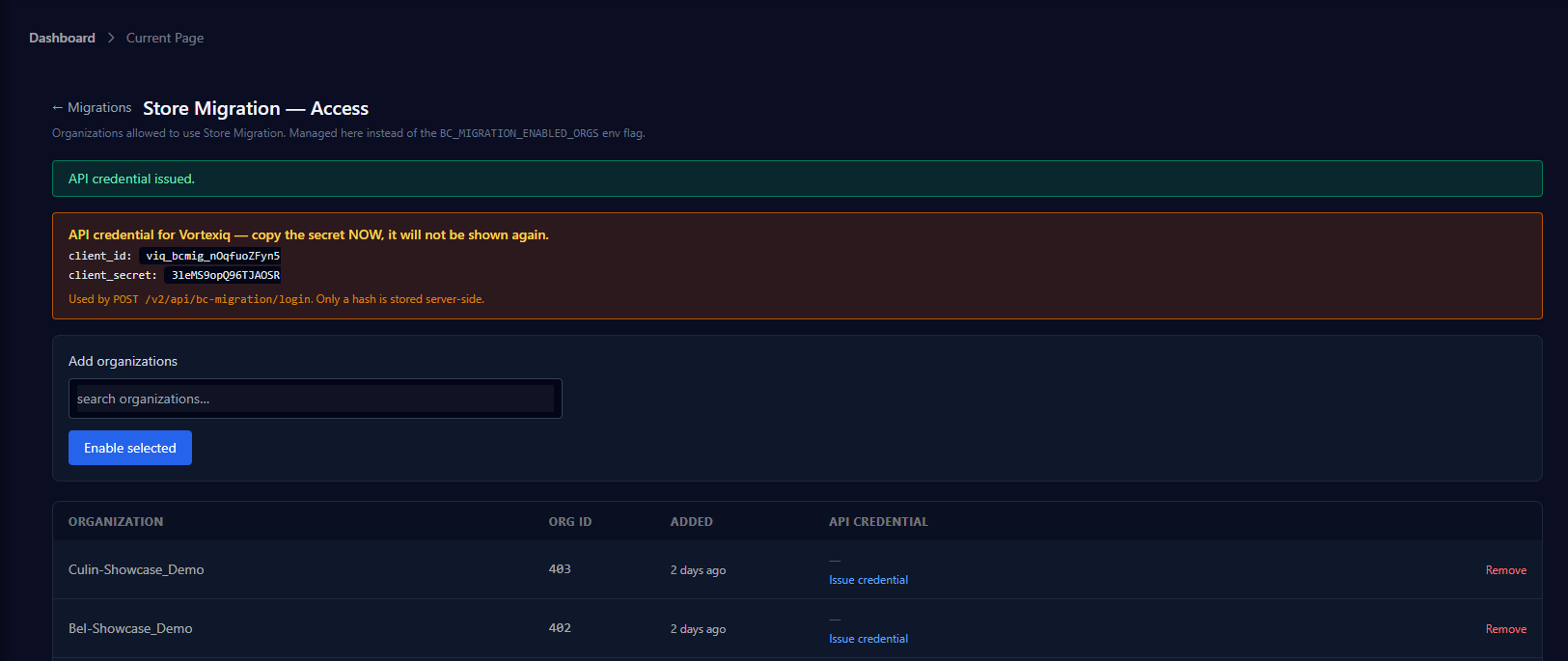 The banner displays:
* **client\_id** - the organisation's permanent public identifier (starts with **viq\_bcmig\_**).
* **client\_secret** - the private key. Copy it **NOW** and store it in a password manager. Only a hash is kept server-side.
The values visible in the screenshots of this guide are examples for illustration.
***
## Step 5 - Managing an issued credential
Once issued, the organisation's row shows the live credential state.
The banner displays:
* **client\_id** - the organisation's permanent public identifier (starts with **viq\_bcmig\_**).
* **client\_secret** - the private key. Copy it **NOW** and store it in a password manager. Only a hash is kept server-side.
The values visible in the screenshots of this guide are examples for illustration.
***
## Step 5 - Managing an issued credential
Once issued, the organisation's row shows the live credential state.
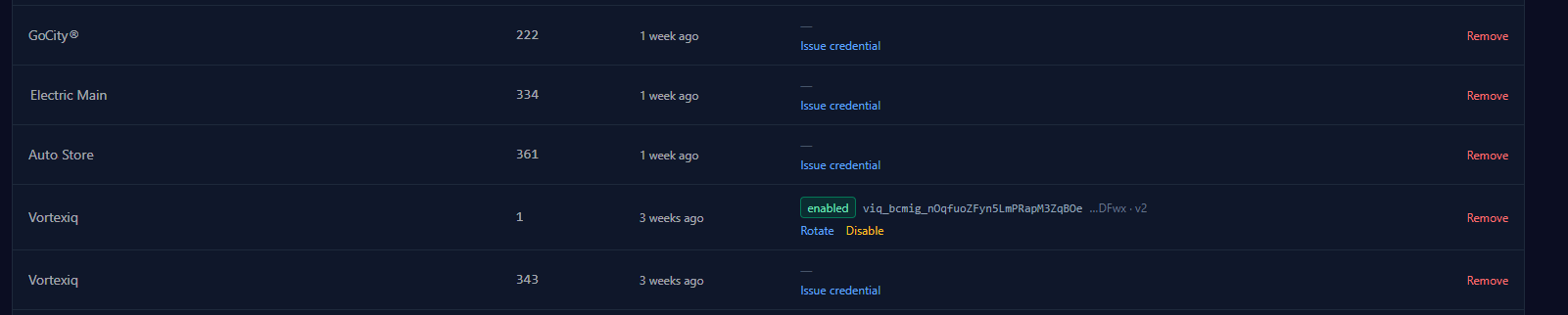 * **enabled** badge - API login is active for this organisation.
* The value after the badge is the **client\_id**; **"...DFwx"** shows the last 4 characters of the current secret; **v2** is the secret version (increments on every rotate/disable).
* **Rotate -** generates a **NEW** secret (same **client\_id**), shows it once in the banner, and **IMMEDIATELY** invalidates the old secret and every outstanding API token for the organisation. Use when a secret is lost or compromised, or for periodic hygiene.
* **Disable** - switches the organisation's API access off without touching their normal UI access. All outstanding tokens stop working immediately. **Issue credential** turns it back on with a fresh secret.
* **Remove** - removes the organisation from Store Migration entirely (UI and API).
Every issue, rotate, and disable records the acting admin and timestamp for audit.
## Sharing the credentials
Deliver the **client\_id** and **client\_secret** to the customer through a **SECURE** channel - a password manager share or a one-time secret link.
Never send the secret in plain email or chat.
Tell the customer the three identity values must match their VortexIQ account exactly:
* **username** - their name as registered on their VortexIQ user (first name, last name, or full name).
* **email** - the email of their VortexIQ user account.
* **organization\_name** - their organisation name exactly as registered (case-insensitive).
The customer must provide all of the following values exactly as registered:
* username
* email
* organization\_name
* client\_id
* client\_secret
Any mismatch will prevent successful authentication.
***
## Bearer Token Login Request
With those plus the credentials, they log in and receive a Bearer token valid for 10 days.
The customer authenticates by calling the login endpoint.
```http theme={null}
POST /v2/api/bc-migration/login
Content-Type: application/json
```
Request Body
```json theme={null}
{
"username": "John Smith",
"email": "john.smith@example.com",
"organization_name": "Acme Inc",
"client_id": "viq_bcmig_xxxxxxxxxxxxxxxxx",
"client_secret": "xxxxxxxxxxxxxxxxxxxxxxxxxxxxxxxxxxxxxxxx"
}
```
If authentication succeeds, the API returns a Bearer token. The response includes their organisation's connected stores (with the store hashes used on all migration endpoints), the access\_token, and its expiry.
The customer supplies this token in the **Authorization** header for all subsequent Migration API requests.When it expires after 10 days, they simply log in again.
***
## API Documentation
Complete API documentation is available at:
```text theme={null}
https://docs.vortexiq.ai/vortex-apps/staging-pro/api/overview
```
The documentation includes:
* Authentication
* Store discovery
* Migration endpoints
* Request and response examples
* Error responses
* API reference
***
## Quick Troubleshooting
The secret cannot be recovered.
Click **Rotate** to generate a new secret.
Share the newly generated secret securely with the customer.
Verify that:
* username matches the VortexIQ user.
* email matches the VortexIQ user.
* organization\_name matches the organisation.
* client\_id is correct.
* client\_secret is the latest version.
If necessary, rotate the credential and try again.
The organisation must have at least **two connected BigCommerce stores** before Migration API authentication is permitted.
The credential may have been:
* Rotated
* Disabled
Either action immediately invalidates all previously issued Bearer tokens.
Authenticate again using the latest client credentials.
***
You have successfully generated and managed an Organisation **Client ID** and **Client Secret** for use with the StagingPro V2 Migration API.
* **enabled** badge - API login is active for this organisation.
* The value after the badge is the **client\_id**; **"...DFwx"** shows the last 4 characters of the current secret; **v2** is the secret version (increments on every rotate/disable).
* **Rotate -** generates a **NEW** secret (same **client\_id**), shows it once in the banner, and **IMMEDIATELY** invalidates the old secret and every outstanding API token for the organisation. Use when a secret is lost or compromised, or for periodic hygiene.
* **Disable** - switches the organisation's API access off without touching their normal UI access. All outstanding tokens stop working immediately. **Issue credential** turns it back on with a fresh secret.
* **Remove** - removes the organisation from Store Migration entirely (UI and API).
Every issue, rotate, and disable records the acting admin and timestamp for audit.
## Sharing the credentials
Deliver the **client\_id** and **client\_secret** to the customer through a **SECURE** channel - a password manager share or a one-time secret link.
Never send the secret in plain email or chat.
Tell the customer the three identity values must match their VortexIQ account exactly:
* **username** - their name as registered on their VortexIQ user (first name, last name, or full name).
* **email** - the email of their VortexIQ user account.
* **organization\_name** - their organisation name exactly as registered (case-insensitive).
The customer must provide all of the following values exactly as registered:
* username
* email
* organization\_name
* client\_id
* client\_secret
Any mismatch will prevent successful authentication.
***
## Bearer Token Login Request
With those plus the credentials, they log in and receive a Bearer token valid for 10 days.
The customer authenticates by calling the login endpoint.
```http theme={null}
POST /v2/api/bc-migration/login
Content-Type: application/json
```
Request Body
```json theme={null}
{
"username": "John Smith",
"email": "john.smith@example.com",
"organization_name": "Acme Inc",
"client_id": "viq_bcmig_xxxxxxxxxxxxxxxxx",
"client_secret": "xxxxxxxxxxxxxxxxxxxxxxxxxxxxxxxxxxxxxxxx"
}
```
If authentication succeeds, the API returns a Bearer token. The response includes their organisation's connected stores (with the store hashes used on all migration endpoints), the access\_token, and its expiry.
The customer supplies this token in the **Authorization** header for all subsequent Migration API requests.When it expires after 10 days, they simply log in again.
***
## API Documentation
Complete API documentation is available at:
```text theme={null}
https://docs.vortexiq.ai/vortex-apps/staging-pro/api/overview
```
The documentation includes:
* Authentication
* Store discovery
* Migration endpoints
* Request and response examples
* Error responses
* API reference
***
## Quick Troubleshooting
The secret cannot be recovered.
Click **Rotate** to generate a new secret.
Share the newly generated secret securely with the customer.
Verify that:
* username matches the VortexIQ user.
* email matches the VortexIQ user.
* organization\_name matches the organisation.
* client\_id is correct.
* client\_secret is the latest version.
If necessary, rotate the credential and try again.
The organisation must have at least **two connected BigCommerce stores** before Migration API authentication is permitted.
The credential may have been:
* Rotated
* Disabled
Either action immediately invalidates all previously issued Bearer tokens.
Authenticate again using the latest client credentials.
***
You have successfully generated and managed an Organisation **Client ID** and **Client Secret** for use with the StagingPro V2 Migration API.